
Diagnostics
Summary
The diagnostics center is where you troubleshoot a misbehaving Hermes Agent. In one place you can view and export recent logs, reset the model configuration, or reinstall the agent while keeping your data. When the agent stops replying, replies strangely, or a channel connection fails, check here first: read the logs to determine whether it is a failed model call, a dropped channel, or a skill error, then take the matching action. Reinstalling preserves your data, so accumulated memory is not lost.
Diagnostics helps you investigate an Agent that is not behaving as expected. From one place, you can review recent Hermes Agent logs, export them for sharing, reset model configuration, or reinstall the Agent while keeping its data.
Current controls and scope
Select the target Bot and open Explore → Management → Diagnostics. Query or export logs for 1, 3, 6, 12 or 24 hours. Reset model configuration affects only that Bot profile. Switch to the main Bot for instance-wide maintenance such as resetting Hermes, the work environment or the instance; backup and restore have the separate target scopes explained below.
This page covers
- Viewing and exporting recent logs
- Resetting a broken model configuration
- Reinstalling an Agent while keeping its data
- Knowing when to use recovery options and when to ask for help
Use Diagnostics deliberately: Start with logs and the smallest safe action. Resetting configuration or reinstalling an Agent is best reserved for a persistent issue.
Before you start
- Open the Agent that is having trouble.
- Note what happened, when it started, and whether it affects Chat, a connected channel, or one specific task.
- If a model is failing, review the current setup in Configure Models before resetting anything.
Open Diagnostics
- Open Agents and choose the affected Agent.
- Open the Diagnostics section.
- Select a time range for recent logs: 1, 3, 6, 12, or 24 hours.
- Select Query to load the logs.
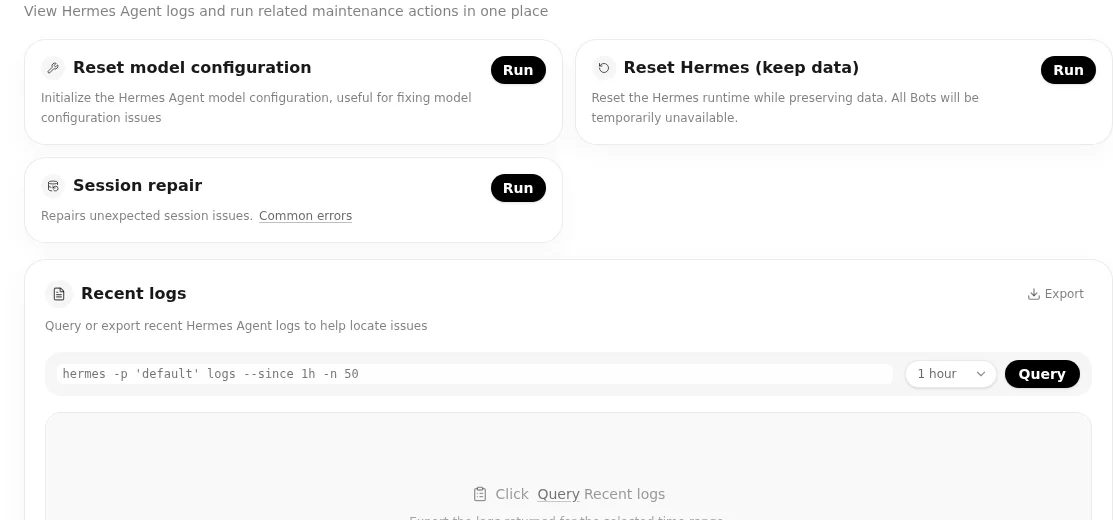
Start with the shortest useful period. A narrower log window makes it easier to connect an error with the action that triggered it.
Review and export logs
Use the log output to confirm whether the Agent was running and to identify the time of a failure. You can export the current log range as a file when you need to keep a record or share it with your support contact.
When reporting a problem, include:
- the approximate time it occurred;
- what you asked the Agent to do;
- the selected log range; and
- the relevant error message, without including secrets or API keys.
Repair a model configuration
If the Agent cannot use its configured model and the issue remains after checking the provider, model selection, and credentials, select Reset model configuration in Diagnostics.
This resets only the Hermes Profile for the current Bot. It restores the system built-in model and its credential, and removes user-added models, providers, and fallbacks. Other Bots in the same Agent are unaffected. After it finishes:
- Send a short test message in Chat to confirm that the built-in model works.
- If you still need a custom model, return to Configure Models and add or select it again.
Caution: User-added model configuration is not retained. This should not be the first response to a temporary provider or network issue.
Reinstall an Agent while keeping data
For an issue that continues after reviewing logs and model settings, Diagnostics offers Reset Hermes (keep data). This starts the Hermes Agent reinstall process while preserving its data.
- Read the action description in Diagnostics.
- Start the reinstall and keep the page open while the status changes.
- When it completes, reload the Agent console.
- Test a simple task in Chat, then check Cloud Storage and your usual setup.
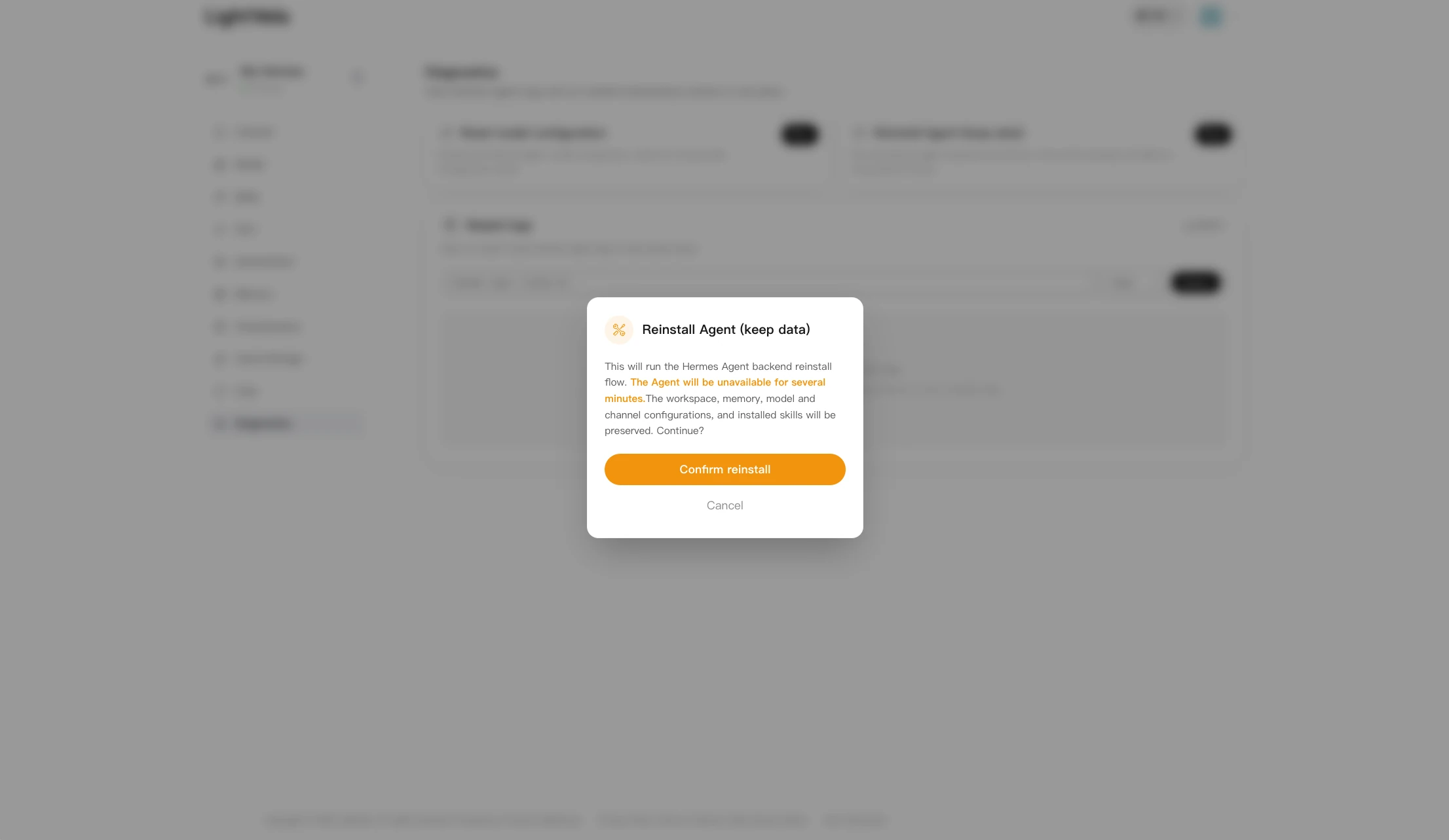
An Agent can be briefly unavailable during maintenance. Avoid starting another repair action while the reinstall is still in progress.
Instance maintenance and split work environments
For split instances, the main Bot’s Diagnostics can offer Reset work environment, Rebuild instance and Reset Hermes (keep data). A work-environment reset temporarily interrupts terminals, files and Cloud Computer; rebuilding the instance or resetting Hermes affects the whole Agent. Follow the actions and confirmation shown for your instance, wait for maintenance to finish, then verify the affected features. Do not start overlapping maintenance tasks.
Backup and recovery, when available
Select the target Bot and open Backup & Recovery in Diagnostics. The instance must be running, your account must have a bound email, and no other backup, restore or maintenance task may be running for that Agent.
- Main Bot: The backup includes the main and additional Bots’ configuration, workspaces, memory and skills. Restoring overwrites matching data in the target Agent and affects every Bot.
- Additional Bot: Back up or restore only that Bot’s configuration, persona, memory, sessions, skills and workspace. Restore keeps its channel connections and accepts only a single-Bot backup; do not upload a whole-Agent archive here.
Choose Backup to email, review the scope and submit, then wait for the task status and email result. Before restoring, save irreplaceable data; choose Restore from backup, upload a compatible ZIP and verify the target and scope. Even a single-Bot backup or restore briefly makes the entire Agent unavailable. Only one such task can run per Agent at a time.
Use Refresh and execution records to check the final result, then verify the target Bot’s models, files, memory and chat. Submission is not completion. If the result is unknown, check status before submitting again.
Verify the fix
The issue is likely resolved when:
- recent logs load without a repeated failure;
- the Agent can respond to a simple test in Chat; and
- the model and files you expect are available again.
If the same error returns, export the relevant logs and record the time of the next occurrence before escalating it.
FAQ
Which log range should I choose?
Choose the shortest range that includes the problem. Use a longer range only when the issue started earlier or happens intermittently.
Will reinstalling erase my Agent's data?
The Diagnostics action is labelled Reset Hermes (keep data) and is designed to preserve data. Still, avoid interrupting the maintenance process and verify the Agent after it completes.
Should I reset the model configuration for every model error?
No. First check Configure Models for the selected model and credentials, then confirm the provider is available. Reset only when the configuration itself needs to be rebuilt.
Next steps
- Return to Chat to test the repaired Agent.
- Review Configure Models or Model Switching for model-related issues.
- Check Cloud Storage if a task depends on files that are missing or inaccessible.
Last updated 2026-11-16