
Lark
Configure Channel - Lark
Summary
The Lark channel suits workplace use, supporting rich-text messages and @mentioning the bot in group chats, and connects the same way as WeChat: pick Lark in the console Channels section, click to authorize and generate a QR code, then scan it with Lark to start talking. You need Lark on your phone (or signed in on desktop) and a configured model (or simply the monthly model credits included with your plan). Channels connected to the same Bot share that Bot’s persona and long-term memory. Different Bots have separate Profiles, with their own memories and skills. A chat message does not automatically become long-term memory just because it reaches the same Bot.
The Lark channel is suited for office scenarios. It supports rich-text messages and @mentions of the bot in group chats. The integration uses QR-code authorization, similar to WeChat.
This page covers
-
Generating a Lark access QR code in LightVela
-
Scanning the QR code with Lark to authorize
-
Chatting with Hermes Agent in Lark
Steps
1. Enter the console
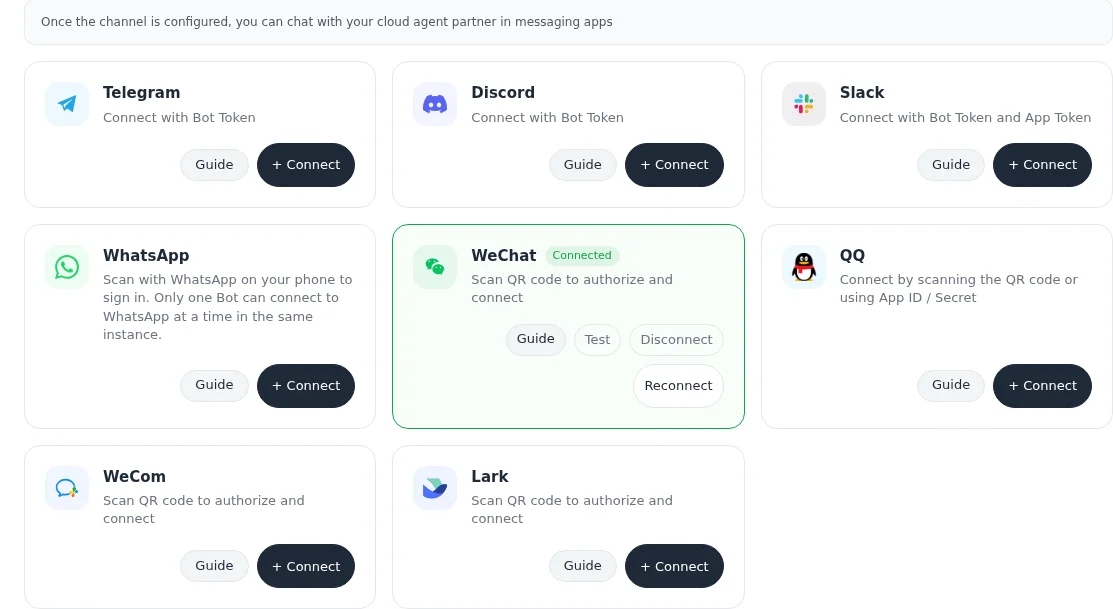
Sign in to LightVela, select the intended Bot, and open Daily → Channels in the console.
2. Select the Lark channel
Find the Lark card in Channels and select + Connect.
3. Scan to authorize
A QR code appears on the page.
4. Scan with Lark
On mobile:
-
Open Lark
-
Tap "+" in the upper-right corner → "Scan"
-
Scan the QR code on your computer screen
-
Follow the prompts to complete authorization
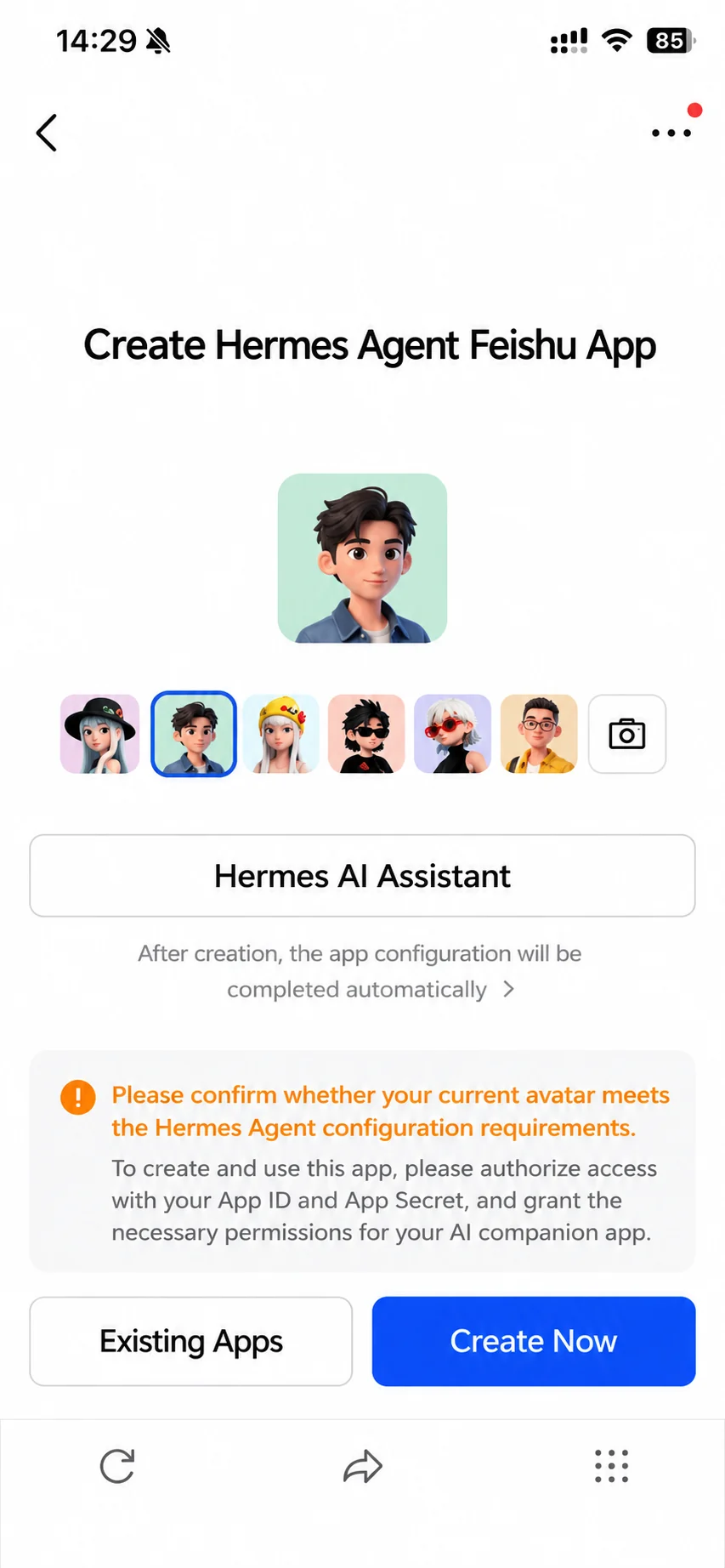
5. Find Hermes Agent in Lark
After a successful scan:
-
Check that the Lark card shows Connected, then send a test message from that platform.
-
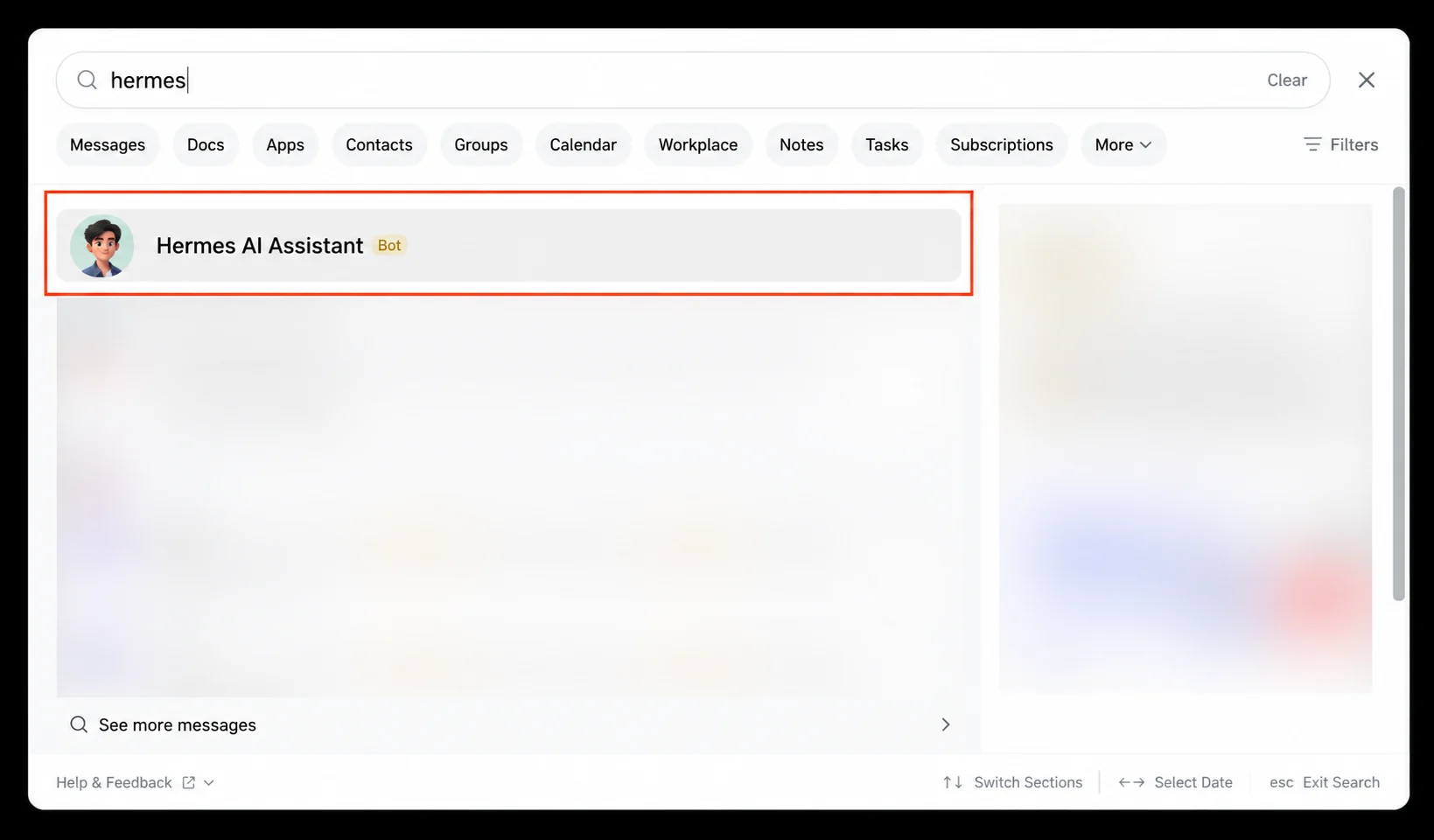
Lark automatically adds the bot to your contacts
Search Lark for the application name you created.
Open the bot's chat window and send a test message:
Hello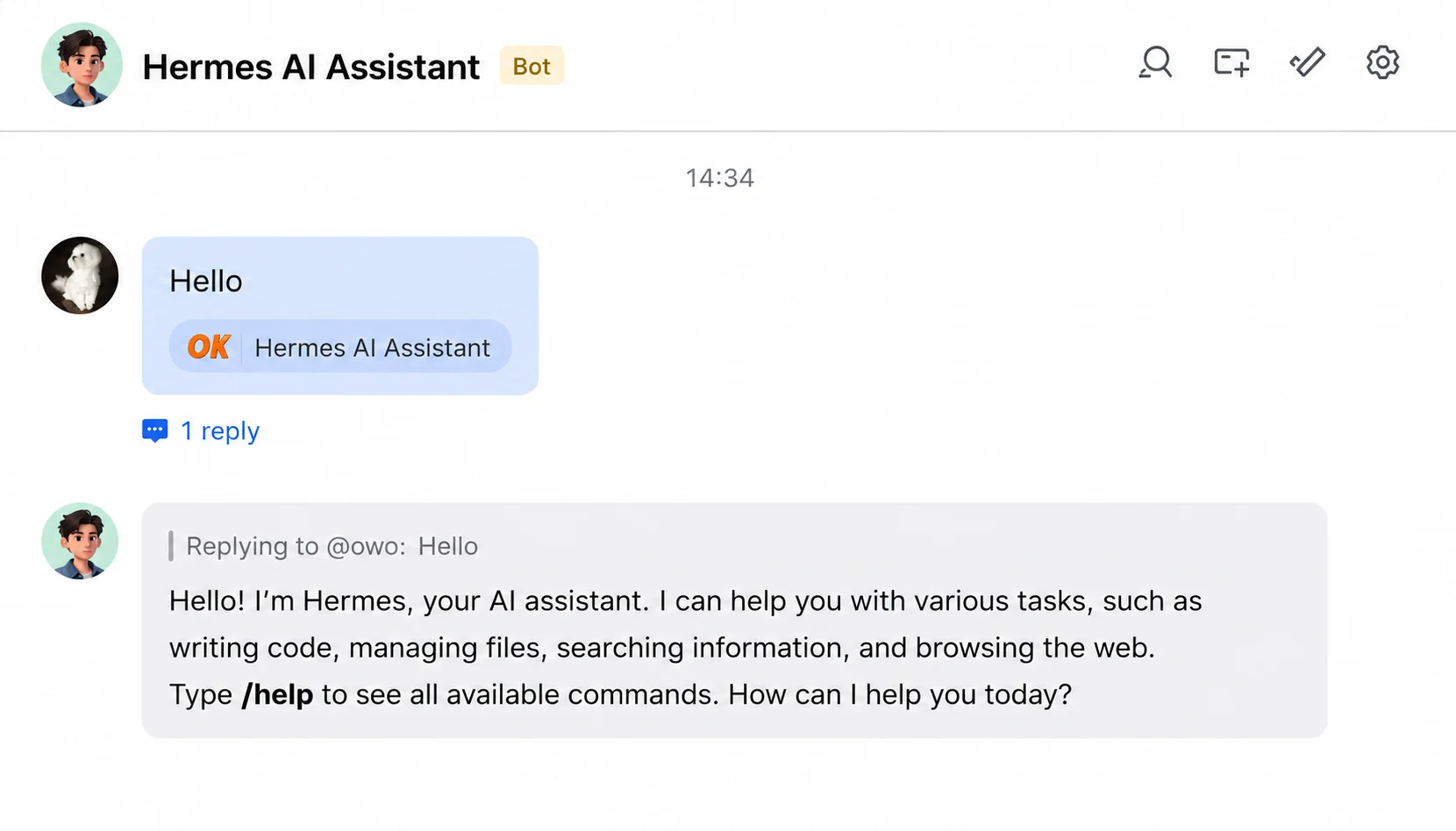
Success state
-
Check that the Lark card shows Connected, then send a test message from that platform.
-
The bot can be found via Lark search
-
Sending a message receives a Hermes Agent reply
Supported message types
After integration, the Lark bot supports more than basic text. The full list:
| Lark bot — supported message types and features | Supported |
|---|---|
| Receive text messages | ✅ Yes |
| Receive images | ✅ Yes |
| Receive files | ✅ Yes |
| Receive audio / video | ✅ Yes |
| Reply with text messages | ✅ Yes |
| Reply with images | ✅ Yes |
| Reply with files | ✅ Yes |
| Reply with audio | ✅ Yes |
| Reply content supports Markdown | ✅ Yes |
| Send messages proactively (e.g. scheduled reminders) | ✅ Yes |
Group chats and permissions
In an internal group, open Settings → Bots → Add Bot on desktop, or Bots → Add on mobile. Find the connected app bot, add it, then @mention it with a test message. You must be within the app’s visibility scope, and group settings must allow adding bots and posting. Check these conditions if the bot is not listed. Lark.
These steps are for internal groups. External groups have additional restrictions; check the platform’s official rules for the group type and bot type. A custom webhook bot is different from an app bot.
Document and Drive permissions
Connecting the messaging channel does not grant access to every document, Wiki, or Drive resource. Resource operations also require a suitable tool or skill, application API permissions, and access to the target resource. An app acting on another owner’s resources needs that owner’s authorization. For permission errors, check authorization and ownership, then test with an explicitly shared document. Lark API.
FAQ
| Symptom | Possible cause | Resolution |
|---|---|---|
| Scan shows "Application not authorized" | Tenant admin restricts third-party apps | Ask your tenant admin to allow the app, or switch to a personal tenant |
| Bot contact not found | Lark collapses bots by default | Search the Hermes Agent application name from the top of Lark |
| How to add the bot to a group | — | In an internal group, open Settings → Bots → Add Bot on desktop, or Bots → Add on mobile |
| QR code expired | Not scanned within the validity window | Close the dialog and click "Connect" again |
| No reply after sending a message | Model not configured or trial credits exhausted | Check the "Current Model" status |
| Rich-text rendering issues | Lark does not support some Markdown syntax | Plain-text conversation is unaffected |
Channel notes
-
Message types: Text, rich text, images, files, audio, video, and more — see "Supported message types" above
-
Group chat support: The bot can be added to group chats and will respond when @mentioned
-
Tenant restrictions: Whether an enterprise Lark tenant allows third-party bots depends on the tenant admin's policy
Next steps
- Configure Skills — Extend Hermes Agent capabilities
Last updated 2026-11-15