
Chat
Summary
After signing in and activating a LightVela plan, you can chat with the selected Bot from Web Chat in My Agent without connecting a messaging channel first. The sidebar keeps that Bot's conversations, so you can start a new one or return to an existing one. Before sending a message, make sure the Bot is online and that plan model credits are available or a model is configured.
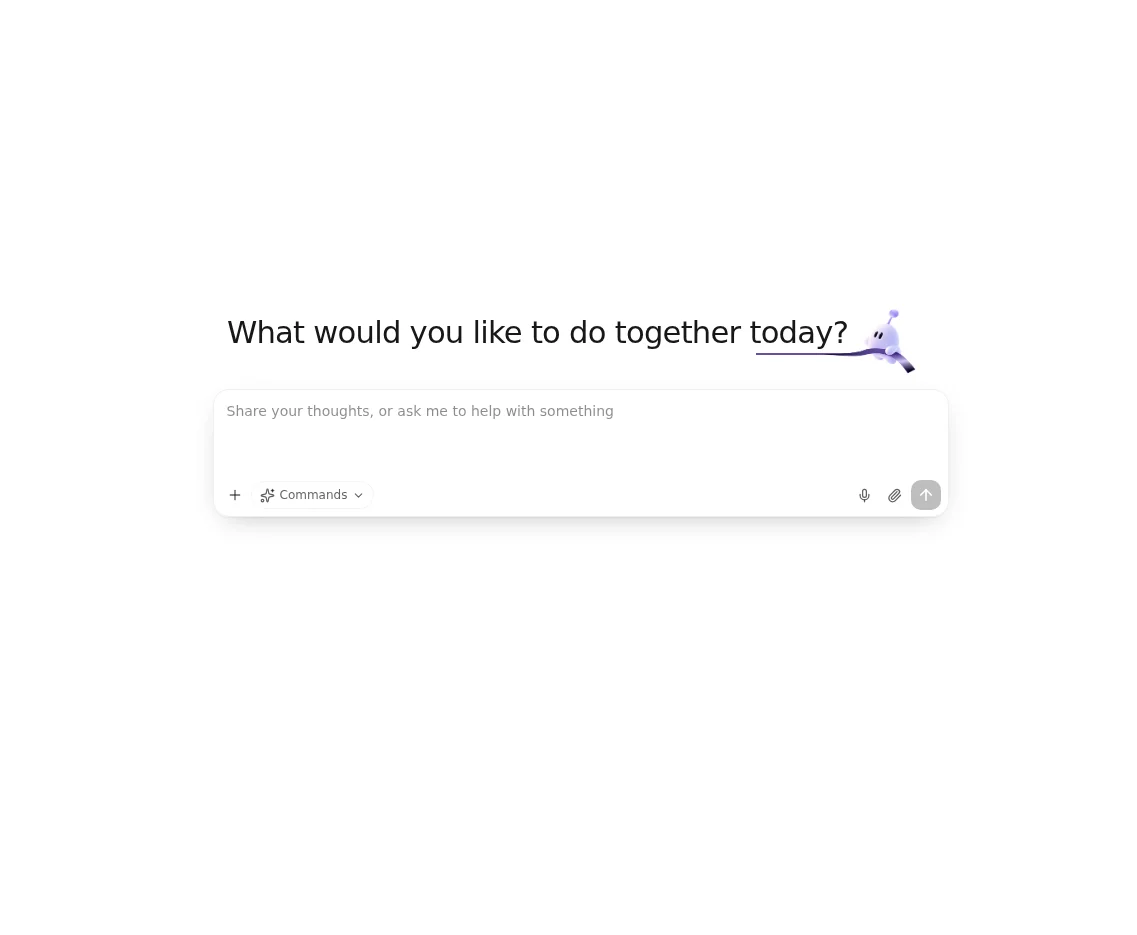
Start a conversation
After signing in with Google or GitHub and activating an available plan, open the Agent console. Complete the first Bot setup: enter a required name, optionally add a description, and adjust its appearance. Select Create and wait for creation and initial configuration to finish. Select Start your journey once configuration finishes, then open Web Chat for that Bot. A messaging channel is optional; available plan model credits or a configured model are required for replies.
- Open My Agent and select the Bot you want to use at the top of the sidebar.
- Select the intended Bot, then choose New conversation in the separate conversation area of the sidebar.
- Enter your question or task in “Share your thoughts, or ask me to help with something,” then send it.
- Read the reply in the conversation. The composer appears as soon as a new conversation opens, so you can start writing; sending becomes available once the connection is ready. Opening an existing conversation may briefly show “Your AI companion will be right here.”
Web Chat does not require a messaging channel. To use the same Bot in Telegram, WhatsApp, Discord, or WeChat, connect that platform under Channels.
Return to or manage conversations
Recent conversations for the selected Bot appear under Chat. Select a title to continue; use Show more to reveal older conversations. The menu beside a conversation lets you rename or delete it. Selecting another Bot shows that Bot's conversations.
Hermes retains useful long-term preferences and project details as appropriate. See Memory to inspect the selected Bot's long-term memory; starting a new conversation does not clear it.
Model for the current conversation
When the composer offers a model selector, choose a configured model allowed for the selected Bot. This changes only the current conversation; it does not change the Bot’s saved primary model or restart the gateway. A choice made in an empty conversation is applied before the first message. Wait for the switch result. If loading fails, no options appear, or a model is restricted, follow the prompt or check configuration. To change the default model and task models, use Model Switching.
Scheduled-task conversations
Execution conversations produced by tasks appear in the selected Bot’s Scheduled tasks sidebar group. Multiple runs of one task share an entry; open it to read the result timeline or return to an original conversation. This is separate from starting an ordinary chat or configuring a task. See Scheduled tasks to create or edit tasks and troubleshoot Recent Runs. After switching Bots, check that Bot’s own tasks and records.
Voice calls
The microphone control enters text by voice; the phone control starts a real-time call with the Agent. Calls are available in the selected Bot’s ordinary web chat when the Agent and connection are ready, not in external-channel histories or scheduled-task conversations.
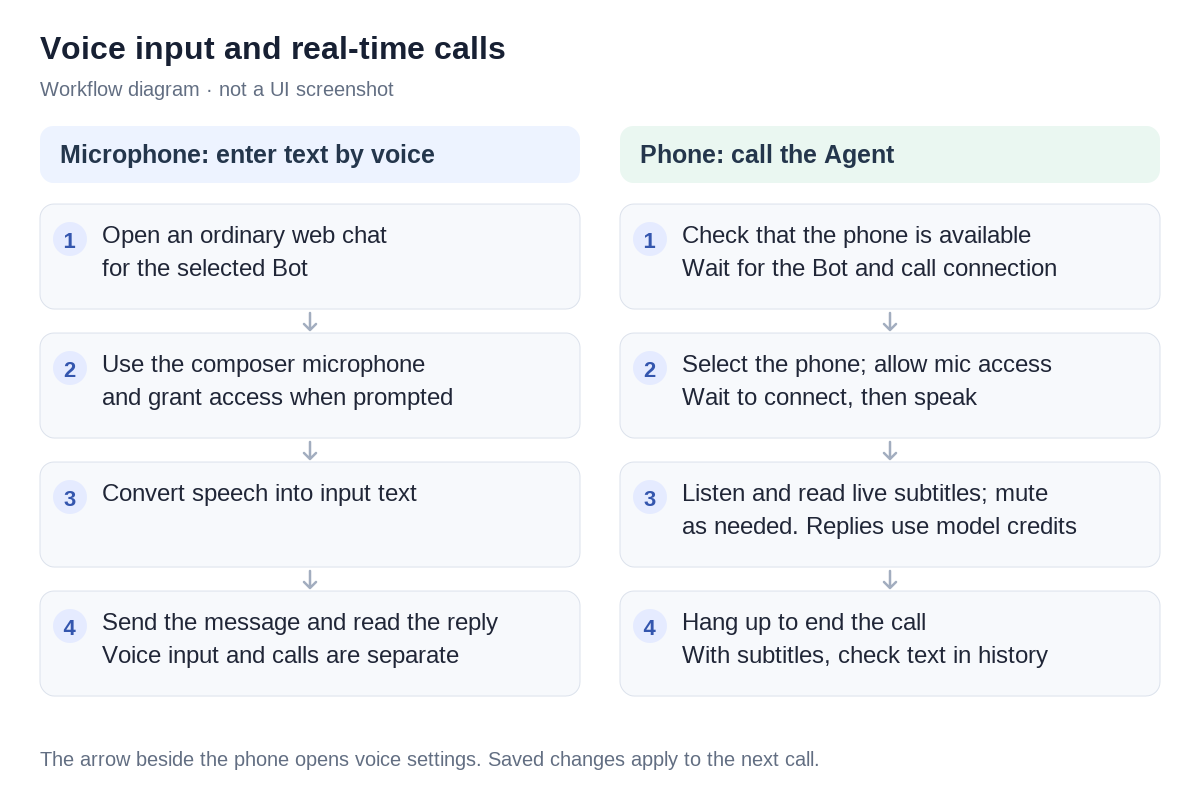
Workflow diagram, not a UI screenshot.
- Check the selected Bot, allow microphone access in the browser, and select the phone button beside the composer.
- Wait for the call to connect, then speak normally. Read the live subtitles and listen to the Agent’s reply; use Mute or Hang up as needed.
- Use the arrow beside the phone button to open voice settings. A saved voice change applies to the next call.
AI replies consume model credits according to actual model usage. Daily and per-call limits may also apply; follow the current notice. If the button is unavailable, check the Bot and connection. For microphone errors, grant permission or connect a microphone. For expired sign-in, model credentials, or insufficient credits, resolve that condition before calling again. After ending a call with subtitles, check the conversation history for its text.
Phone button missing or unavailable
-
Return to an ordinary web chat for the selected Bot, rather than an external-channel history or a scheduled-task conversation.
-
Confirm that the Bot is online and wait for its call connection to be ready. The phone entry may be hidden when the call service is not ready or the Bot is restricted. Working web chat alone does not prove that calls are ready.
-
If the button is grey, wait for the connection to recover; sign in again if prompted about an expired session. If refreshing does not restore the entry or availability, record the site, Bot name, time and a page screenshot, then contact support.
Verify and troubleshoot
- Expected result: Your message appears in the conversation, the Bot replies, and you can return to the conversation from the sidebar after reloading.
- Loading message remains: Confirm that the Bot is online, then refresh the page. Wait for the composer before deciding Chat is unavailable.
- Cannot send or receive a reply: Check available plan model credits or Model configuration, and confirm the Bot is not paused. A connected external channel is not required for Web Chat.
Last updated 2026-11-16