
WeCom
Configure Channel - WeCom
Summary
Customers with verified WeCom enterprises can use the connected smart bot in internal company groups by @mentioning it. Availability and add-bot controls depend on the WeCom client and organization permissions. After testing direct messages, verify replies in the intended group separately.
The WeCom channel uses QR-code access and is the simplest channel to configure.
This page covers
-
Generating a WeCom access QR code in LightVela
-
Scanning the QR code with WeCom on your phone
-
Chatting with Hermes Agent in WeCom
Steps
1. Enter the console
Sign in to LightVela, select the intended Bot, and open Daily → Channels in the console.
2. Select the WeCom channel
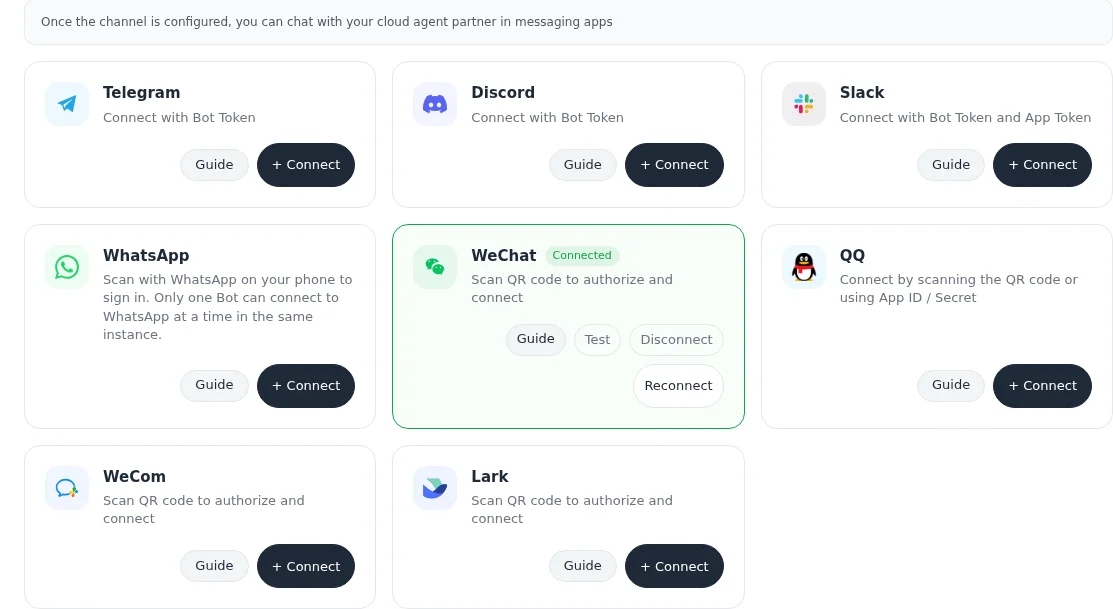
Find the WeCom card in Channels and select + Connect.
3. Scan to authorize
A QR code appears on the page.
4. Scan with WeCom on your phone
-
Open WeCom on your phone
-
Tap "+" in the upper-right corner → "Scan"
-
Scan the QR code on your computer screen
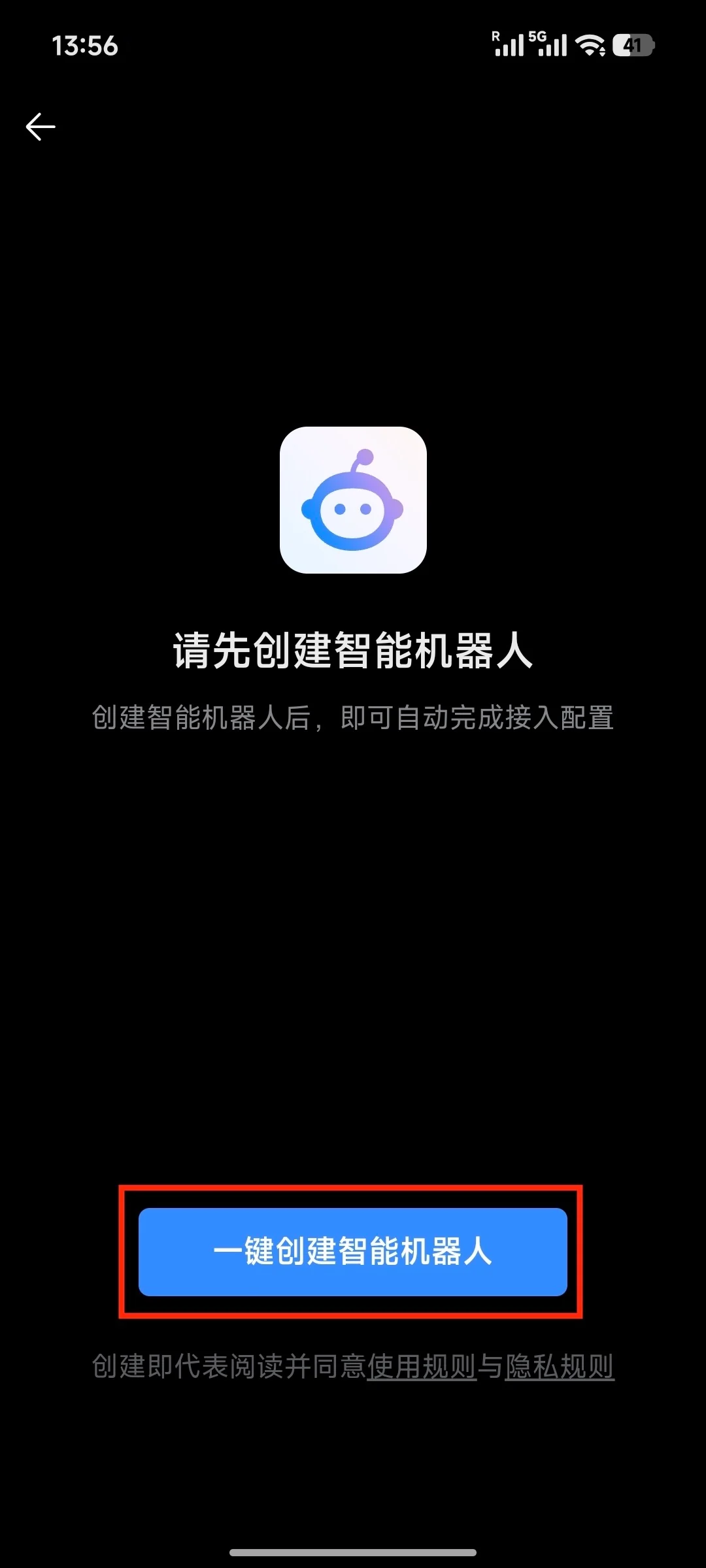
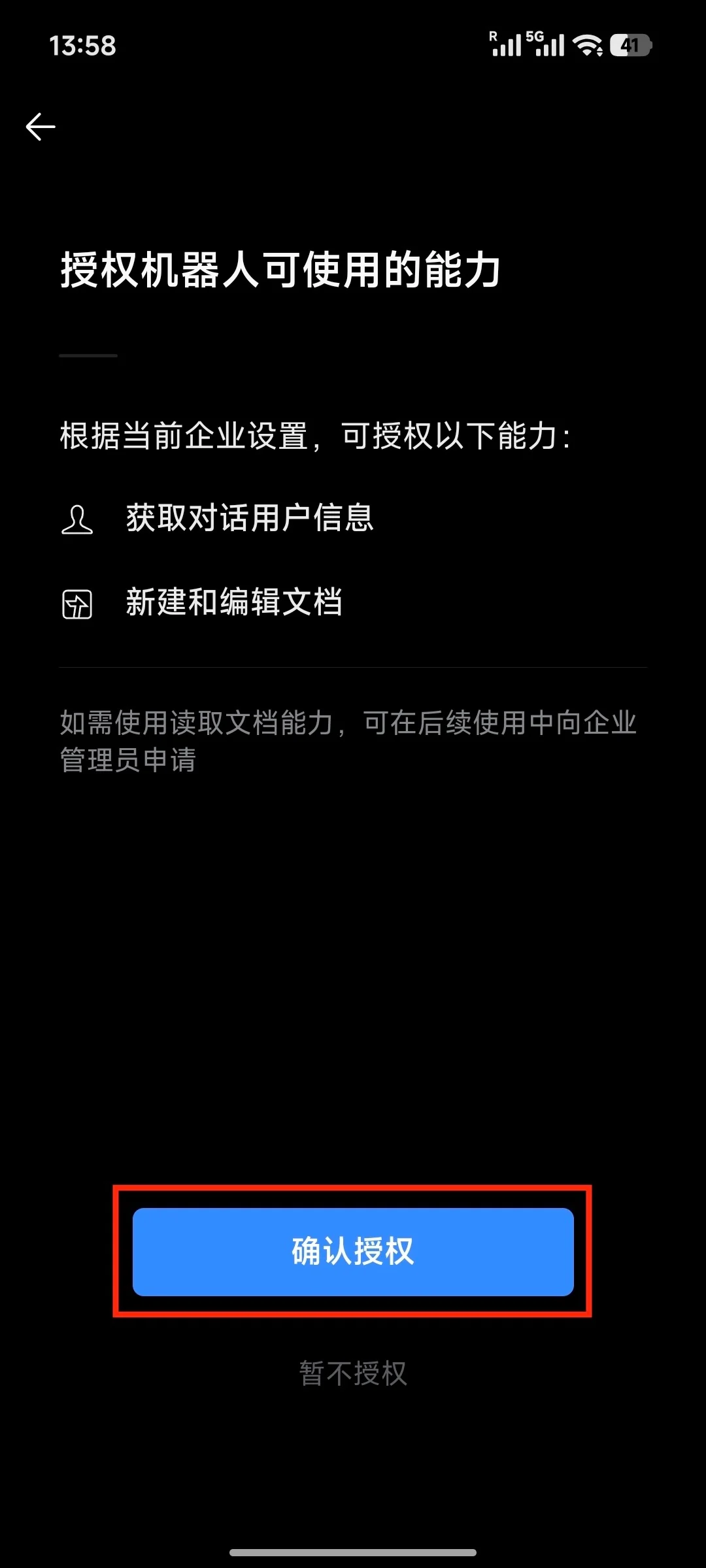
- Follow the prompts on your phone to complete authorization
5. Chat with the created bot
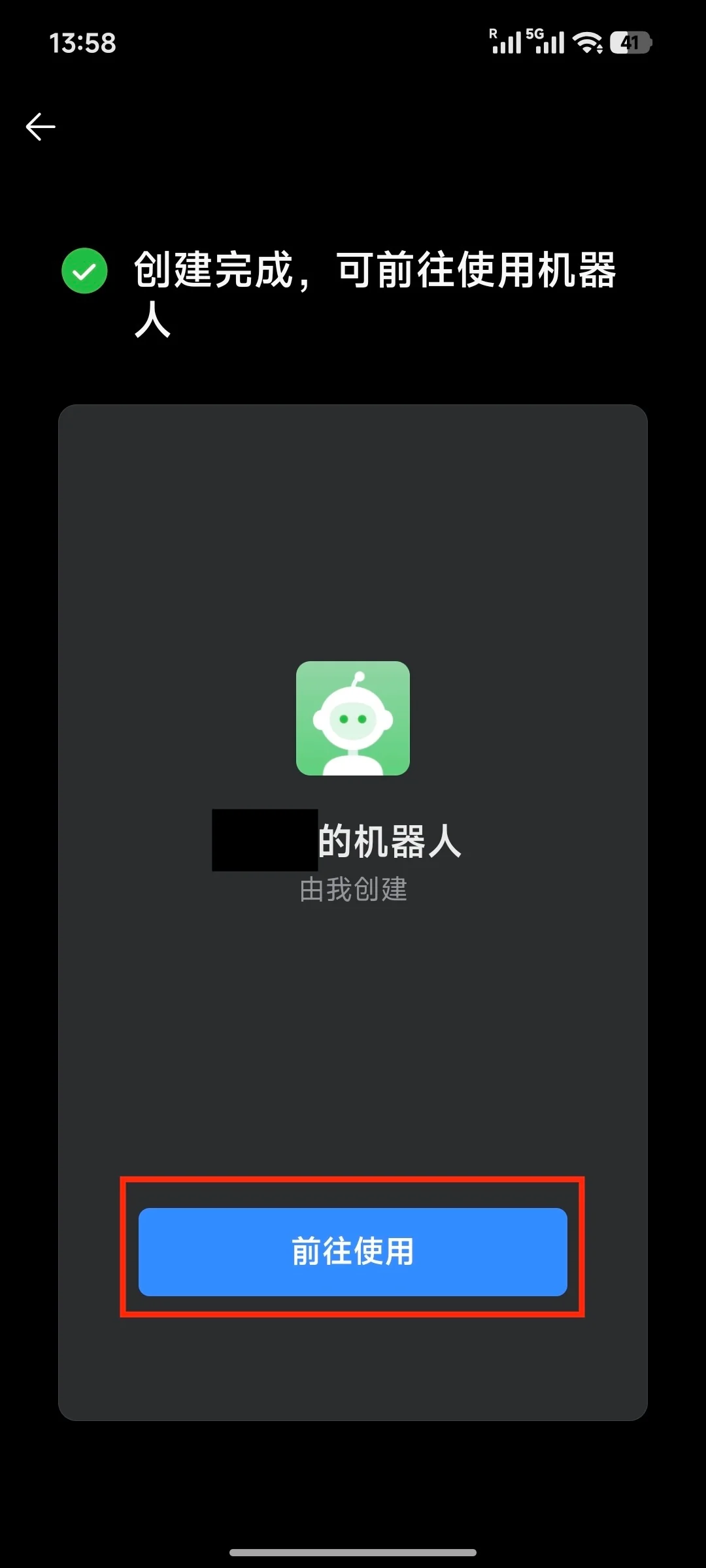
After a successful scan:
-
The dialog closes automatically and you'll be taken to the created bot page
-
WeCom automatically adds the bot to your contacts
Open the bot's chat window and send a test message:
HelloYou'll receive a Hermes Agent reply within seconds.
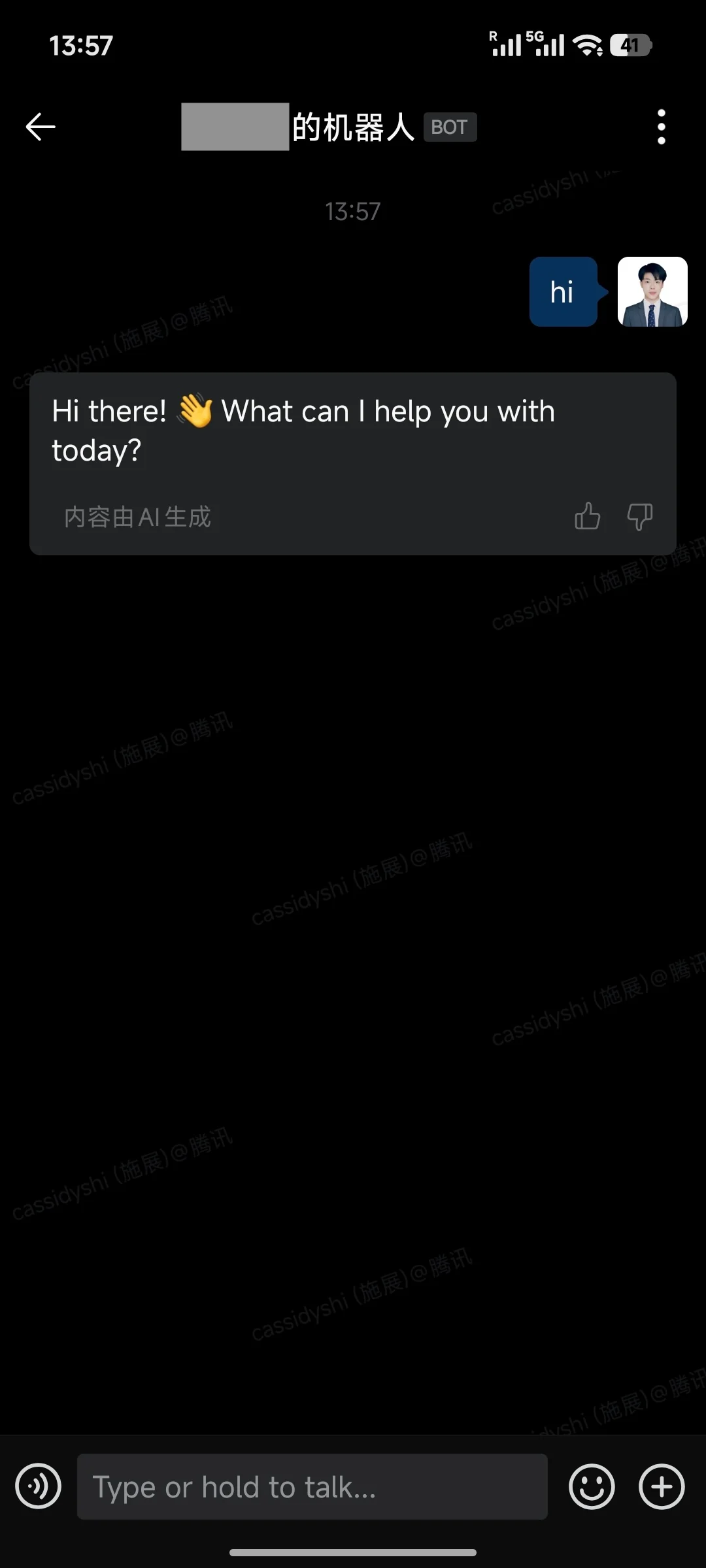
Success state
-
Check that the WeCom card shows Connected, then send a test message from that platform.
-
The bot can be found in your WeCom contacts
-
Sending a message receives a Hermes Agent reply
Supported message types
After integration, the WeCom bot supports more than basic text. The full list:
| WeCom bot — supported message types | Supported |
|---|---|
| Receive text messages | ✅ Yes |
| Receive images / video | ✅ Yes |
| Receive files | ✅ Yes |
| Receive voice messages | ✅ Yes |
| Reply with text messages | ✅ Yes |
| Reply with images / video | ✅ Yes |
| Reply with files | ✅ Yes |
| Send messages proactively (e.g. scheduled reminders) | ✅ Yes |
FAQ
| Symptom | Possible cause | Resolution |
|---|---|---|
| WeCom shows "Invalid QR code" after scanning | The QR code has expired | Close the dialog and click "Connect" again |
| No response on the desktop after scanning | Network delay or authorization not yet completed | Refresh the console page to confirm the status; if not connected, retry |
| Bot contact not found in WeCom | Messages collapsed under "Service Notifications" | Search "LightVela" or your Hermes Agent name from the top of WeCom |
| No reply after sending a message | Model not configured or trial credits exhausted | Select the intended Bot, check its primary model and available quota in Models, then confirm the WeCom card is connected and test a message. |
| How to disconnect | — | Select Disconnect on the WeCom card, review the prompt and confirm. |
| Can a single WeCom account connect to multiple Hermes Agent instances | The Launch plan caps you at 1 Hermes Agent | Not applicable |
Channel notes
-
Message types: Text, images, video, files, voice, and more — see "Supported message types" above
-
Connection drops: Long unresponsive periods usually mean the authorization was revoked — re-authorize from the console
Group chats and permissions
The following internal-group steps apply to customers with verified enterprises.
WeCom supports @mentioning the connected smart bot in an internal company group. Open the bot’s profile, choose Add to Group Chat, select an internal group you can manage, then @mention the bot with “Hello” and confirm its reply. If the entry is unavailable, check bot availability, administrator settings, and group type. This does not cover personal WeChat groups, external customer groups, or automatic access to the full history before the bot joined.
Next steps
-
Configure Channel - Lark — Office scenarios with rich text and group chat
-
Configure Skills — Extend Hermes Agent capabilities
Last updated 2026-11-15