
Configure Channel - WeChat
Summary
The WeChat channel connects by QR code and is the simplest of all channels to set up: pick WeChat in the console Channels section, click to authorize and generate a QR code, then scan it with WeChat on your phone to start talking. You need just two things — a phone with WeChat installed, and a configured model (or simply the monthly model credits included with your plan). Channels connected to the same Bot share that Bot’s persona and long-term memory. Different Bots have separate Profiles, with their own memories and skills. A chat message does not automatically become long-term memory just because it reaches the same Bot.
The WeChat channel uses QR-code access and is the simplest channel to configure.
This page covers
-
Generating a WeChat access QR code in LightVela
-
Scanning the QR code with WeChat on your phone
-
Chatting with Hermes Agent in WeChat
Steps
1. Enter the console
Sign in to LightVela, select the intended Bot, and open Daily → Channels in the console.
2. Select the WeChat channel
Find the WeChat card in Channels and select + Connect.
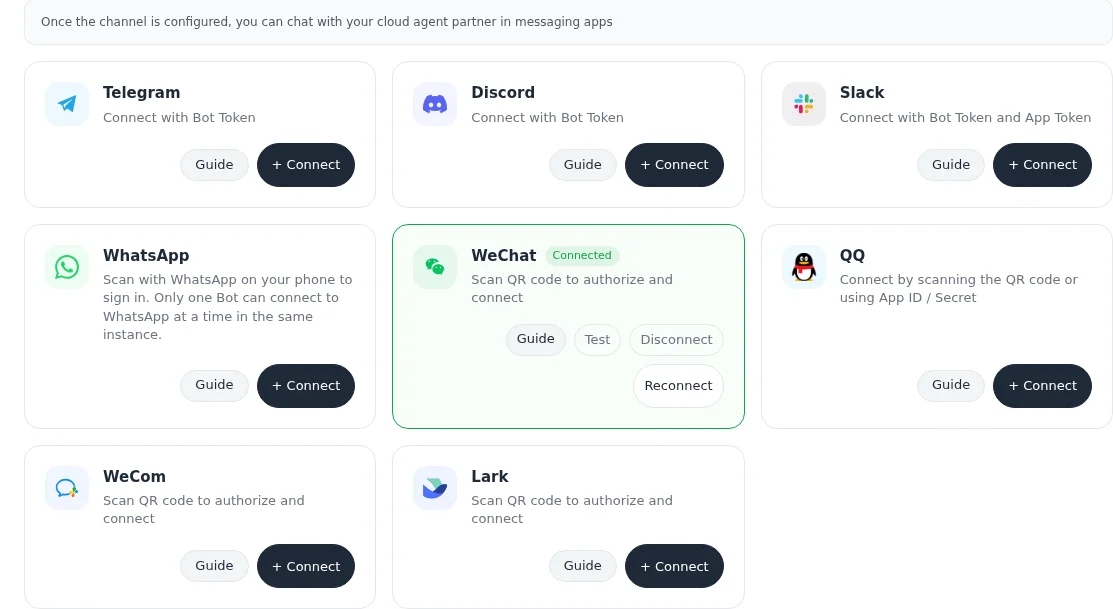
3. Scan to authorize
A QR code appears on the page.
4. Scan with WeChat on your phone
-
Open WeChat on your phone
-
Tap "+" in the upper-right corner → "Scan"
-
Scan the QR code on your computer screen
-
Follow the prompts on your phone to complete authorization
5. Find Hermes Agent in WeChat
After scanning succeeds:
-
Check that the WeChat card shows Connected, then send a test message from that platform.
-
WeChat automatically adds the bot account
Open the chat with that bot and send a test message:
HiYou should receive a Hermes Agent reply within a few seconds.
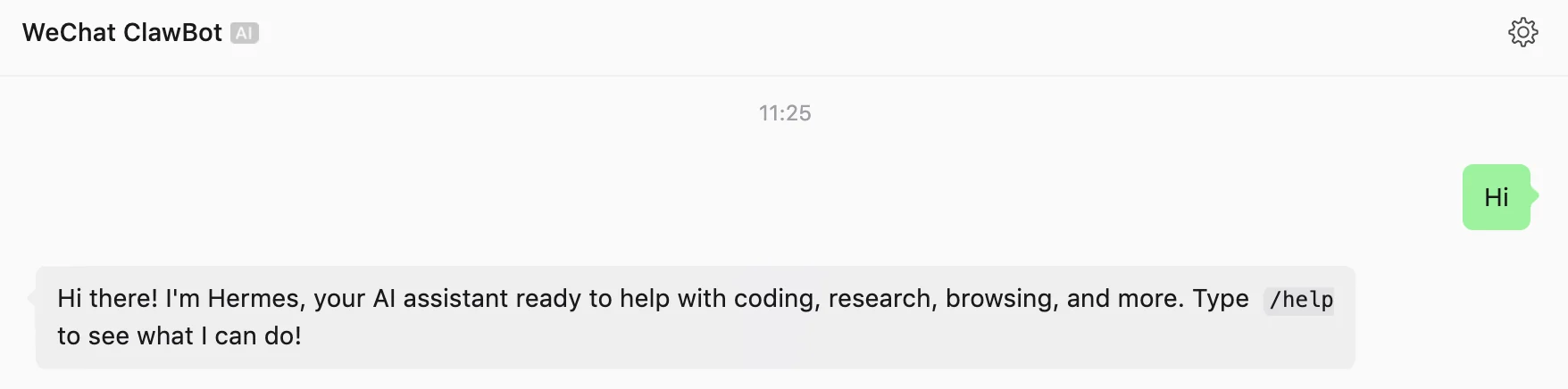
Success state
-
Check that the WeChat card shows Connected, then send a test message from that platform.
-
The corresponding bot can be found in WeChat contacts
-
Hermes Agent replies after you send a message
Supported message types
After access succeeds, the WeChat bot can receive and reply to basic text messages and supports more message types as follows:
| Message type supported by WeChat bot | Supported |
|---|---|
| Receive text messages | ✅ Supported |
| Receive images and videos | ✅ Supported |
| Receive files | ✅ Supported |
| Receive voice messages | ✅ Supported |
| Reply with text messages | ✅ Supported |
| Reply with images and videos | ✅ Supported |
| Reply with files | ✅ Supported |
| Proactively send messages (such as scheduled reminders) | ✅ Supported |
FAQ
| Issue | Possible cause | Solution |
|---|---|---|
| WeChat shows "invalid QR code" after scanning | The QR code has expired | Close the dialog and click "Connect" again |
| No response on the computer after scanning | Network delay or authorization not completed | Refresh the console to confirm status; if access did not succeed, try again |
| Cannot find the bot contact in WeChat | The message is folded into "Service Notifications" | Search "LightVela" or the Hermes Agent name at the top of WeChat |
| No reply after sending a message | Model is not configured or trial credits are exhausted | Select the intended Bot, check its primary model and available quota in Models, then confirm the WeChat card is connected and test a message. |
| How to unlink | — | Select Disconnect on the WeChat card, review the prompt and confirm. |
| WeChat account is already in use | The account is connected to another Bot | Check the owner Bot in the prompt, disconnect its WeChat binding, then scan again on the target Bot. If release fails, check the existing connection before scanning again |
Channel notes
-
Message types: Supports text, images, videos, files, voice messages, and more. See "Supported message types" above
-
Group chat support: Group chats are not currently supported; only 1-to-1 conversations are supported
-
Connection interruption: Long periods of no response may indicate authorization was revoked. Return to the console and authorize access again
Next steps
-
Configure Channel - Telegram — Lightweight notifications and cross-platform communication
-
Configure Channel - WhatsApp — International user communication and customer service
-
Configure Channel - Discord — Community operations and developer communities
-
Configure Channel - Slack — Team collaboration, workspace notifications, and channel workflows
-
Configure Skills — Extend Hermes Agent capabilities
Account conflicts and expired sessions
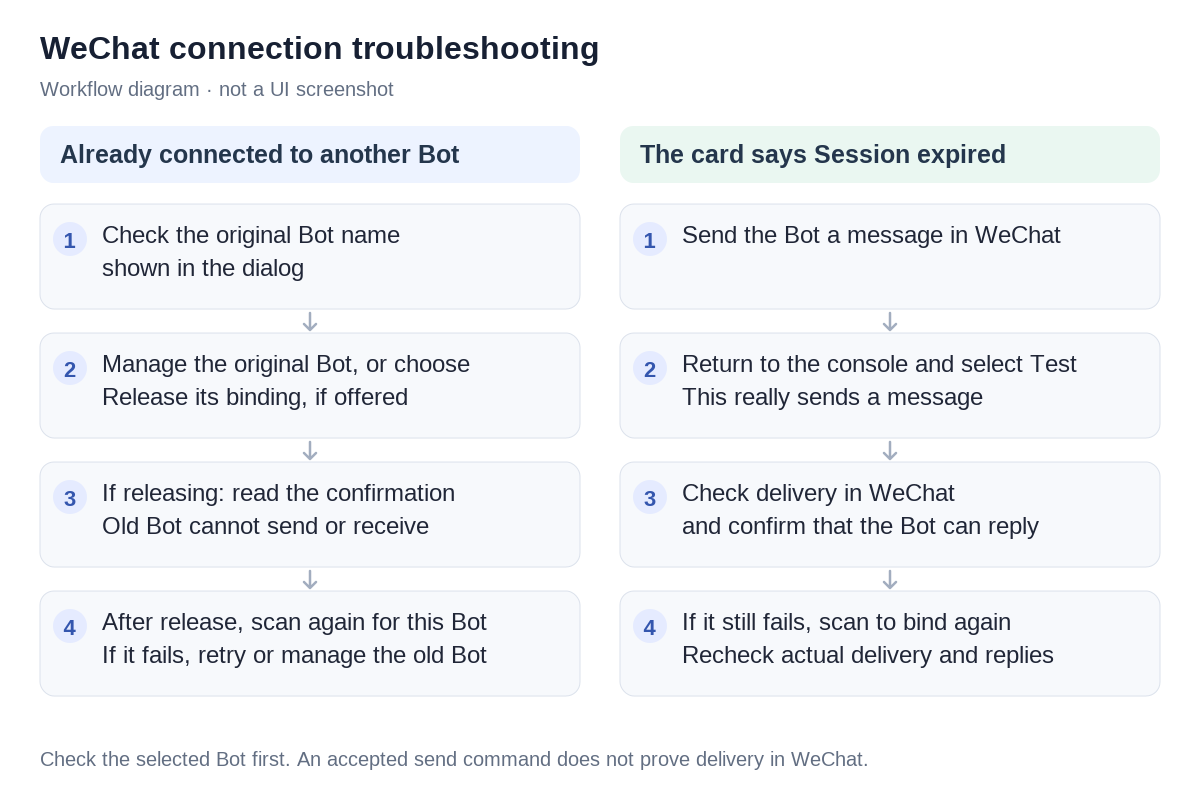
Workflow diagram, not a UI screenshot.
If scanning shows that this WeChat account is connected to another Bot, check the Bot name in the dialog. Visit that Bot to manage the binding, or use Release original Bot binding when offered and read the second confirmation. Releasing stops the original Bot from sending or receiving through that account; scan again on the current Bot afterward. A failed release is not a completed transfer: retry later or disconnect from the original Bot.
If the WeChat card shows Session expired, first send the Bot a message in WeChat, then test again in the console. If it still fails, scan again to reconnect. An accepted test command does not prove delivery: check that WeChat received the test message and send a message to verify the reply.
Last updated 2026-11-16